Improve blurry text in an image
Use a tight crop and gentle sharpening. Severe blur still hides character boundaries and may remain unreadable.
Use crop, rotation, brightness, contrast, grayscale, threshold, sharpening, and inversion to make difficult text easier to inspect before extraction or download.
Drag an image here, choose a file, or paste an image from the clipboard.
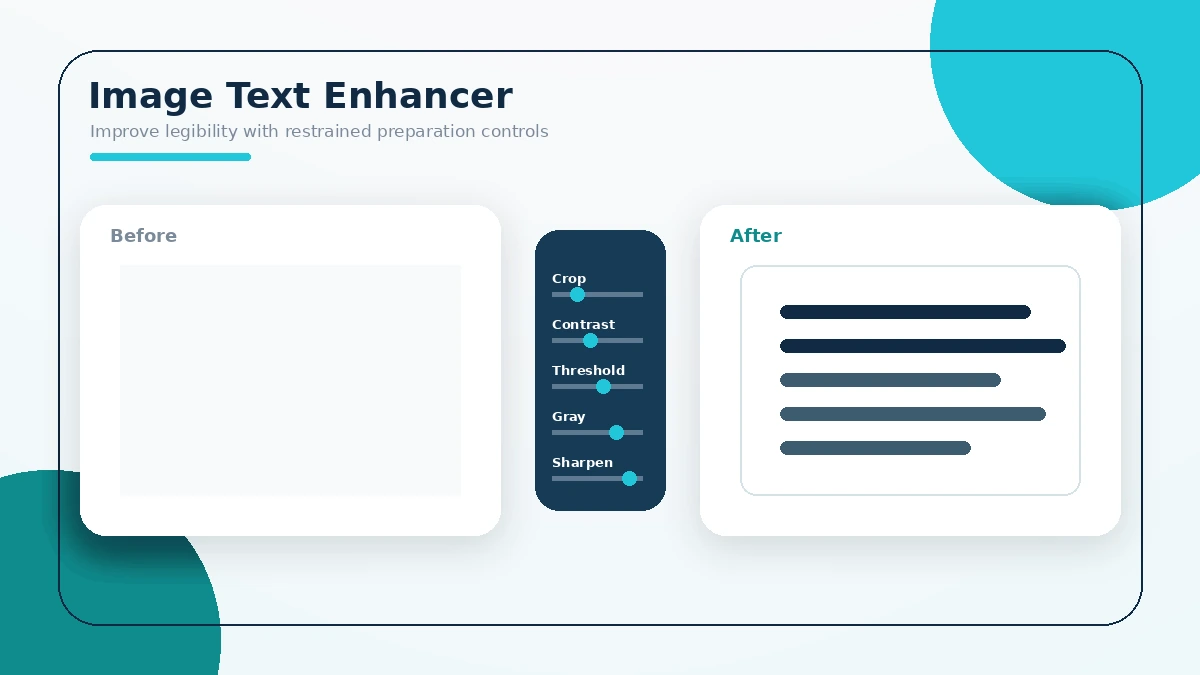
Start with structural fixes. Apply stronger pixel changes only when the source still needs them.
Remove empty margins, photos, borders, and unrelated content around the words you need.
Turn sideways or upside-down text so lines read horizontally.
Make letters separate from the background without erasing thin strokes.
Use one change at a time. Preview the result and compare it with the original image.
| Grayscale | Removes color while keeping brightness differences. |
|---|---|
| Contrast | Increases or reduces the separation between light and dark pixels. |
| Threshold | Converts the image into black and white at a selected brightness level. |
| Sharpen | Strengthens visible edges, including useful text edges and unwanted noise. |
| Invert | Reverses light and dark values, which may help white text on a dark background. |
Use a tight crop and gentle sharpening. Severe blur still hides character boundaries and may remain unreadable.
Raise contrast slowly when gray text blends into paper or a screen background. Watch thin punctuation and letter gaps.
Thresholding can help clean printed text on a simple background. Uneven lighting may cause parts of the text to disappear.
Rotate in 90-degree steps before recognition. Straight text lines make page segmentation easier.
Crop interface clutter, enlarge the text region, and compare color versus grayscale. Then use the screenshot to text converter.
Improve header contrast and row readability, then open the Extract Table from Image tool.
The enhancer uses the browser Canvas API to draw the selected image and modify visible pixels. These operations are deterministic. The same settings produce the same type of transformation.
MDN also explains direct pixel manipulation with Canvas.
Picture2Txt passes the processed preview to Tesseract.js when you start recognition. The extracted result still needs verification.
Read the recognition accuracy guide before processing a difficult scan, photo, or document image.
These short explanations cover common tasks, limits, and result-checking steps.
You can improve visible edges with crop, contrast, threshold, and sharpening, but missing detail cannot be recreated.
It can make some text easier to inspect. It cannot reliably reverse severe motion blur or restore absent characters.
Open the adjustment panel, increase sharpening gradually, preview the image, and stop when background noise becomes stronger.
Use grayscale when color variations distract from the difference between text and background.
It converts pixels above or below a brightness value into white or black, which can clarify simple printed text.
Yes. Excessive contrast can erase thin strokes, close letter gaps, and strengthen compression artifacts.
Yes. Cropping removes unrelated graphics and lets you judge the relevant text region more clearly.
Yes. Rotate the image in 90-degree steps before recognition so the text reads horizontally.
It may help light text on a dark background. Compare the original and inverted versions before recognition.
Yes. Picture2Txt uses the processed preview when you start text recognition.
No. It uses predictable browser Canvas operations rather than a generative or restoration AI model.
Yes. Preview the adjustments and download the enhanced version as a PNG file.
Start with a tight crop and grayscale. Add moderate contrast. Use thresholding only when the background is simple and even.
Sharpening strengthens every edge, including paper texture, JPEG blocks, dust, and background patterns.
No. It cannot reveal text that was covered, removed, redacted, or never captured in the source image.
Test both. A processed version may improve faint letters while damaging punctuation or thin strokes elsewhere.
Yes. Download the processed PNG, then add it to the image table extractor and review the reconstructed cells.