Copy text from a screenshot
Extract error messages, chat text, interface labels, subtitles, and slide content. The screenshot to text converter puts clipboard input first.
Convert JPG, PNG, WEBP, BMP, photos, and screenshots into editable text. Add an image, choose its language, then copy or download the reviewed result.
Drag an image here, choose a file, or paste an image from the clipboard.
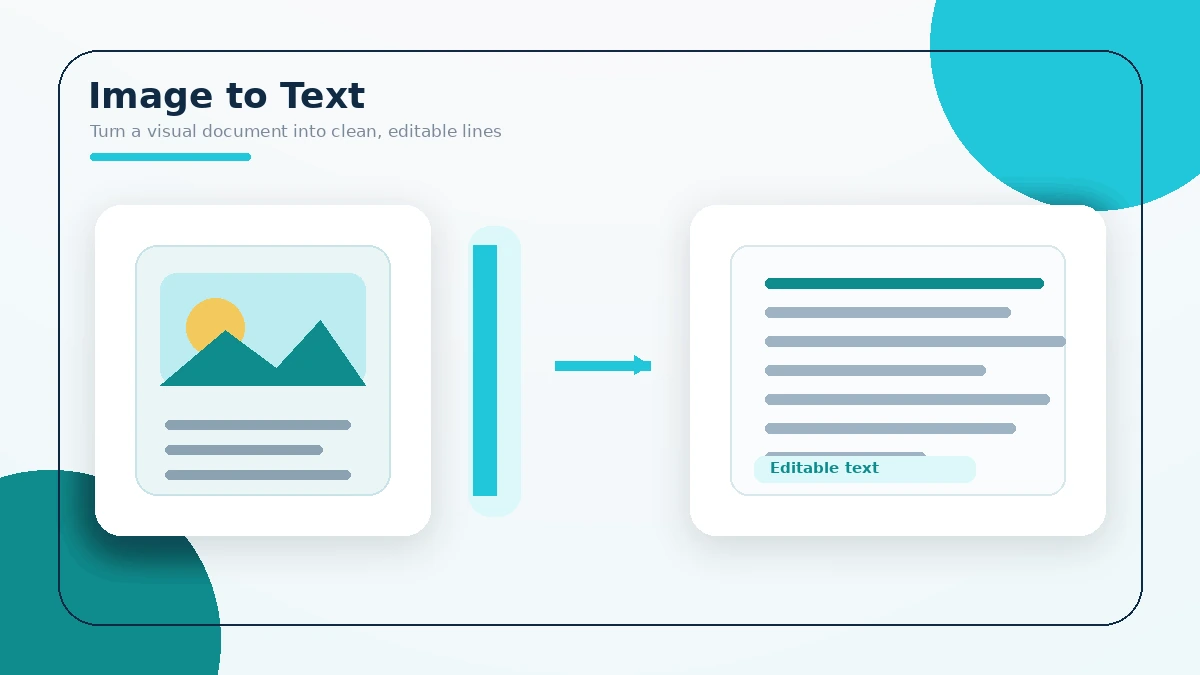
A reliable result starts with a clear image and ends with a careful review.
Choose a file, drag it into the upload area, paste a screenshot, use your camera, or try the sample.
Rotate sideways text. Crop empty margins. Adjust contrast or threshold when the background is faint.
Choose the language used in the image. The correct model helps with alphabets, accents, and word patterns.
Read the visible text, correct mistakes, then copy it or download a TXT file.
| Image formats | JPG, JPEG, PNG, WEBP, and BMP files that the browser can decode |
|---|---|
| Input methods | File picker, drag and drop, clipboard paste, mobile camera, and sample image |
| Tested file limit | Up to 20 MB per image; practical limits also depend on browser memory |
| Output | Editable plain text, clipboard copy, and TXT download |
| Recognition languages | English, Portuguese, Romanian, French, Indonesian, Danish, Polish, German, Spanish, and Russian |
Choose the related tool when the source has a special layout or needs extra preparation.
Extract error messages, chat text, interface labels, subtitles, and slide content. The screenshot to text converter puts clipboard input first.
Photograph printed notes, labels, signs, or book passages. Keep the camera parallel to the page and use even lighting.
Use Extract Table from Image when rows, columns, CSV, or Excel output matter.
Crop, rotate, increase contrast, apply grayscale, or test thresholding with the image text enhancer.
Turn a clean scan into searchable, editable text. Split complex columns into smaller crops when the reading order is mixed.
Select the matching language model before recognition. Read the multilingual image text guide for practical limits.
The browser reads the selected file through standard web file features. Canvas operations can rotate, crop, and change pixel contrast. Tesseract.js then runs the Tesseract recognition engine in a worker.
The engine estimates text regions, lines, words, and character shapes. It returns a draft and a confidence estimate. Confidence supports review, but it does not prove that every character is correct.
For technical background, see MDN guidance on browser file handling and the Canvas API.
Use the detailed image text accuracy guide for difficult photos and scans.
These short explanations cover common tasks, limits, and result-checking steps.
Yes. Add a clear image, select its language, start extraction, and review the editable result.
Add or paste the image, correct the extracted draft, and select Copy Text.
The tool does not send the image to a Picture2Txt upload endpoint. Required recognition files load into the browser.
You can use browser-readable JPG, JPEG, PNG, WEBP, and BMP files within the tested limits.
Yes. Select Paste Image or press Ctrl+V on Windows and Cmd+V on macOS.
Yes. Use the camera option, keep the phone parallel to the page, and avoid shadows or glare.
Blur, small letters, low contrast, rotation, decorative fonts, and the wrong language can reduce accuracy.
Simple handwriting and mild blur may produce partial results, but clear printed text is more dependable.
The main tool returns plain editable text. Use the table extractor when rows and columns matter.
Yes. Compare names, dates, amounts, punctuation, and reference codes with the original image.
It detects visible character shapes in an image and returns an editable text draft. This process is also called optical character recognition, or OCR.
Open the tool, use the camera or photo-library option, choose the source language, and review the result before copying it.
No. The recognition engine runs in a modern browser, so you do not need a desktop program or an account.
A matching language model helps identify accents, alphabets, character shapes, and common word patterns.
The main converter returns plain text. Use Extract Table from Image when rows and columns need to be reconstructed.