Copy an error message from a screenshot
Extract support codes, terminal messages, browser errors, or application warnings. Check every symbol before troubleshooting.
Paste, upload, or select a screenshot from your phone. Extract visible text from error messages, chats, apps, slides, subtitles, product pages, and code images.
Press Ctrl+V or Cmd+V after copying a screenshot.
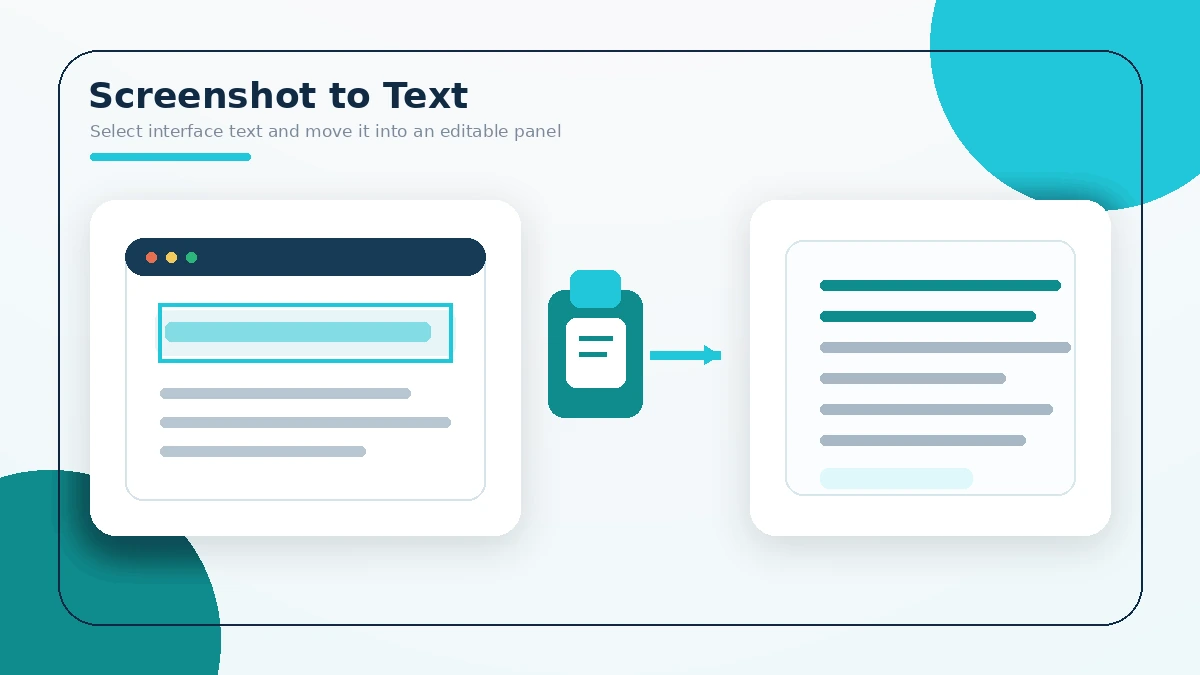
Use a focused crop and verify symbols. Screenshots often contain small anti-aliased text, icons, and mixed layout areas.
Use the clipboard, file picker, drag and drop, or your mobile photo library.
Remove navigation bars, avatars, empty margins, and unrelated interface text.
Choose the language used in the screenshot before recognition starts.
Correct small labels, punctuation, code symbols, timestamps, and line breaks.
Extract support codes, terminal messages, browser errors, or application warnings. Check every symbol before troubleshooting.
Capture relevant messages for notes or search. Verify speaker names, timestamps, punctuation, and reading order.
Use clear frames with large titles or subtitles. Motion blur and decorative backgrounds can lower accuracy.
Recognition can create a starting draft, but braces, quotes, colons, indentation, and letter-number pairs need close review.
Select the image from your phone and crop to the relevant app content. Small status-bar text can be removed.
Extract visible labels, specifications, menu items, or descriptions when direct selection is unavailable.
The page listens for pasted image files and can also request an image through the browser Clipboard API. Access depends on browser support, a secure connection, permission, and user interaction.
MDN documents the current Clipboard API behavior and security requirements.
Tesseract.js runs the recognition process in a browser worker. The selected language model helps identify characters and words. The result is a draft, not a preserved screenshot layout.
Use the main image to text converter for photos and scans, or Extract Table from Image when rows and columns matter.
These short explanations cover common tasks, limits, and result-checking steps.
Paste or upload the screenshot, select its language, start extraction, and correct the editable result.
Yes. After the text appears, edit the draft and press Copy Text.
Use Paste Image or press Ctrl+V on Windows and Cmd+V on macOS after copying it.
Yes. Crop around the message and verify codes, punctuation, and file paths carefully.
It can recognize code characters, but indentation, quotes, brackets, and symbols need manual review.
Yes. Choose the screenshot from your photo library or use the browser file picker.
Yes, when subtitles or labels are sharp, large, and not covered by motion blur.
Small anti-aliased text may need a tighter crop, more resolution, or moderate contrast.
Strong contrast can help, but colored syntax, glow, and thin text can still cause mistakes.
The main result is plain editable text. It does not recreate the original app interface.
The extraction workflow does not use a Picture2Txt screenshot-upload endpoint.
Avoid processing sensitive credentials, especially on shared or untrusted devices.
Clipboard image access requires a secure browser context and may require permission. Press Ctrl+V or Cmd+V, or save the screenshot and upload it.
Text recognition focuses on characters. Emojis, logos, and interface icons may be skipped or converted into incorrect symbols.
Yes. Crop to the relevant messages and check names, timestamps, punctuation, and message order before using the result.
Crop the text region, compare the original and enhanced versions, increase contrast carefully, and test thresholding if the background is simple.
Yes. The editable result can be copied to the clipboard or downloaded as a TXT file.